Pearson Edexcel International GCSE in ICT · 4IT1

Every topic of IGCSE ICT, explained step by step.

15 interactive lessons for the five theory units. Watch how the technology works, try it yourself in the simulations, check what you have learnt after every section and finish with exam-style tests.

See what's inside

For students and staff of British School Alzira · Xàtiva · Gandia, with an account ending in @bsalzira.com, @bsgandia.com, @bsxativa.com or @colegiosbritanicos.com.

  • 15interactive lessons
  • 5units
  • ✓a check after every section
  • A + Btests for every lesson
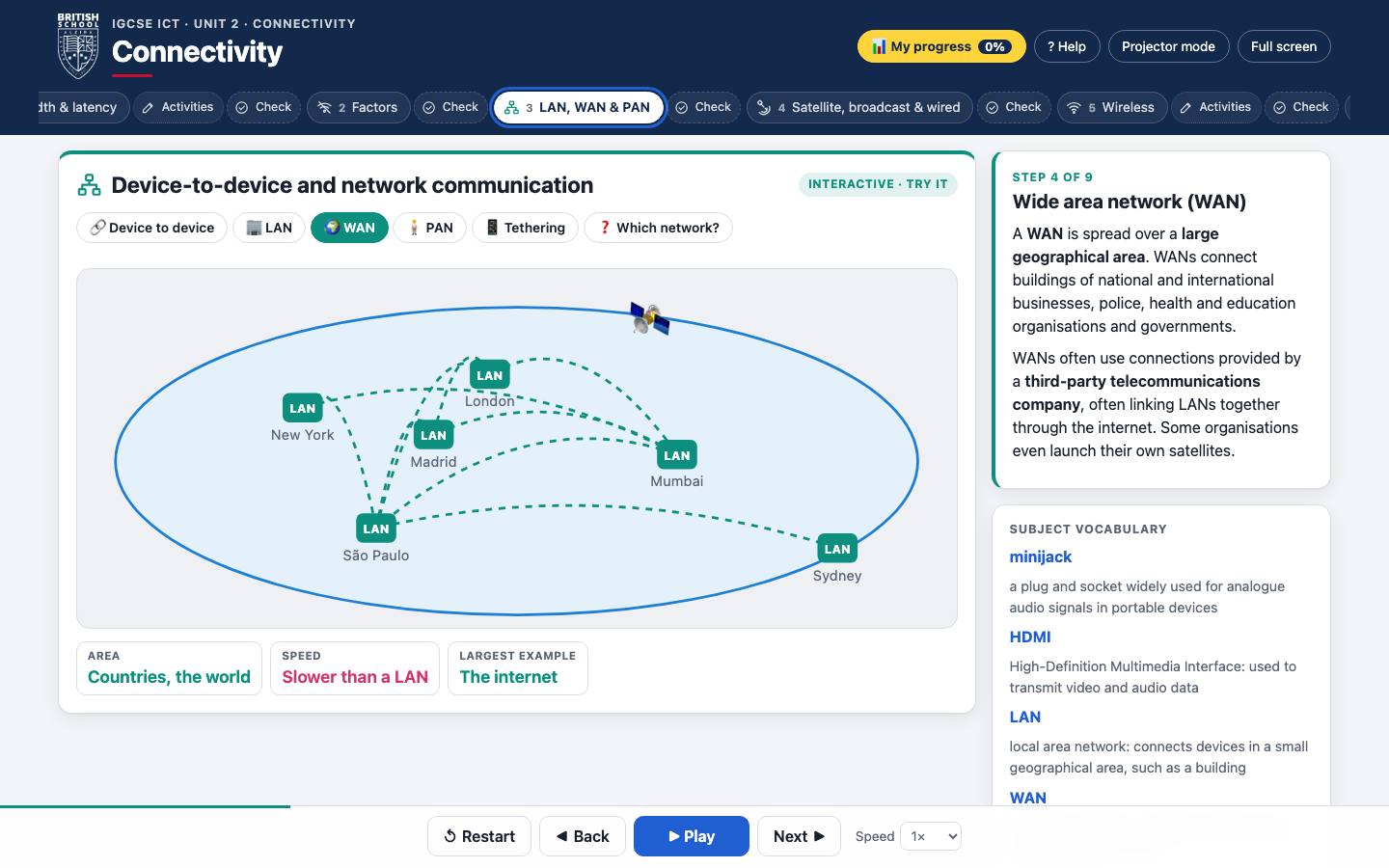
Connectivity · LAN, WAN and PAN
The Connectivity lesson: a wide area network linking LANs in New York, London, Madrid, Mumbai, São Paulo and Sydney, with the explanation beside it.
✓
Check passed9 out of 9
72%
Input devicesprogress saved

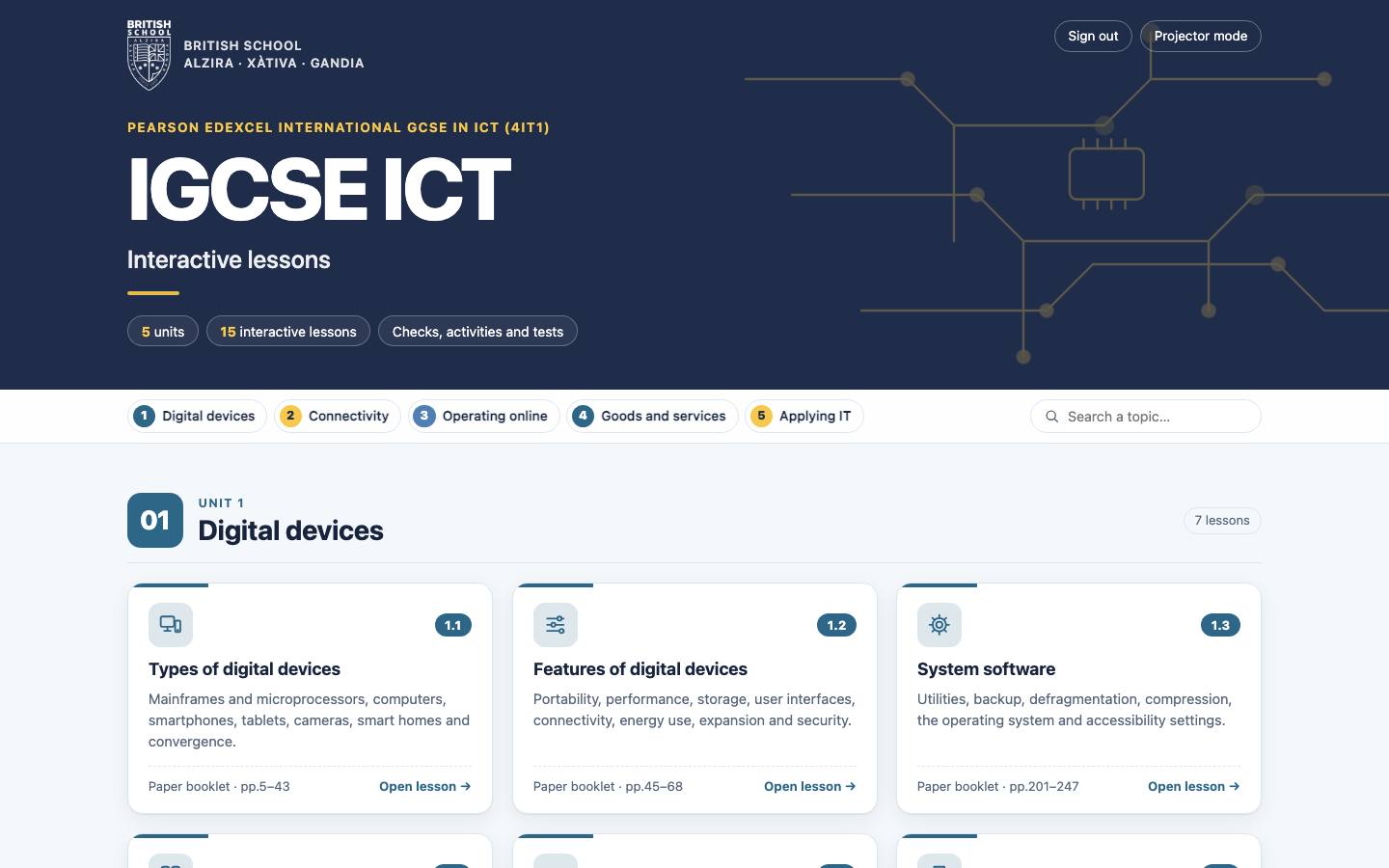
The whole theory course

Five units. Fifteen lessons.

Every lesson follows the order of the specification and has a matching chapter in the paper booklet, so you can study on screen or on paper.

1

Digital devices

  • Types of digital devices
  • Features of digital devices
  • System software
  • Application software
  • Input devices
  • Output devices
  • Storage, memory and processors
7 lessons
2

Connectivity

  • Bandwidth and latency
  • LANs, WANs and PANs
  • IP and MAC addresses
  • Network security
1 lesson
3

Operating online

  • Risks to data and personal information
  • Impact of the internet
  • Online communities
  • Implications of digital technologies
  • Online information
5 lessons
4

Online goods and services

  • Shopping, booking and banking
  • Streaming, gaming and cookies
  • Hosted applications and the cloud
1 lesson
5

Applying information technology

  • Choosing software and data
  • Layout, house styles and fonts
  • Colour, accessibility and evaluation
1 lesson

How every lesson works

Watch it. Try it. Check it. Test it.

▶

Animated explanations

Each topic is explained in short scenes, at your speed. Press Next to go step by step, or Play to watch it like a video. The key words of the subject are explained beside every scene.

  • Clear narration for every step
  • Subject vocabulary as you go
  • Projector mode for the classroom
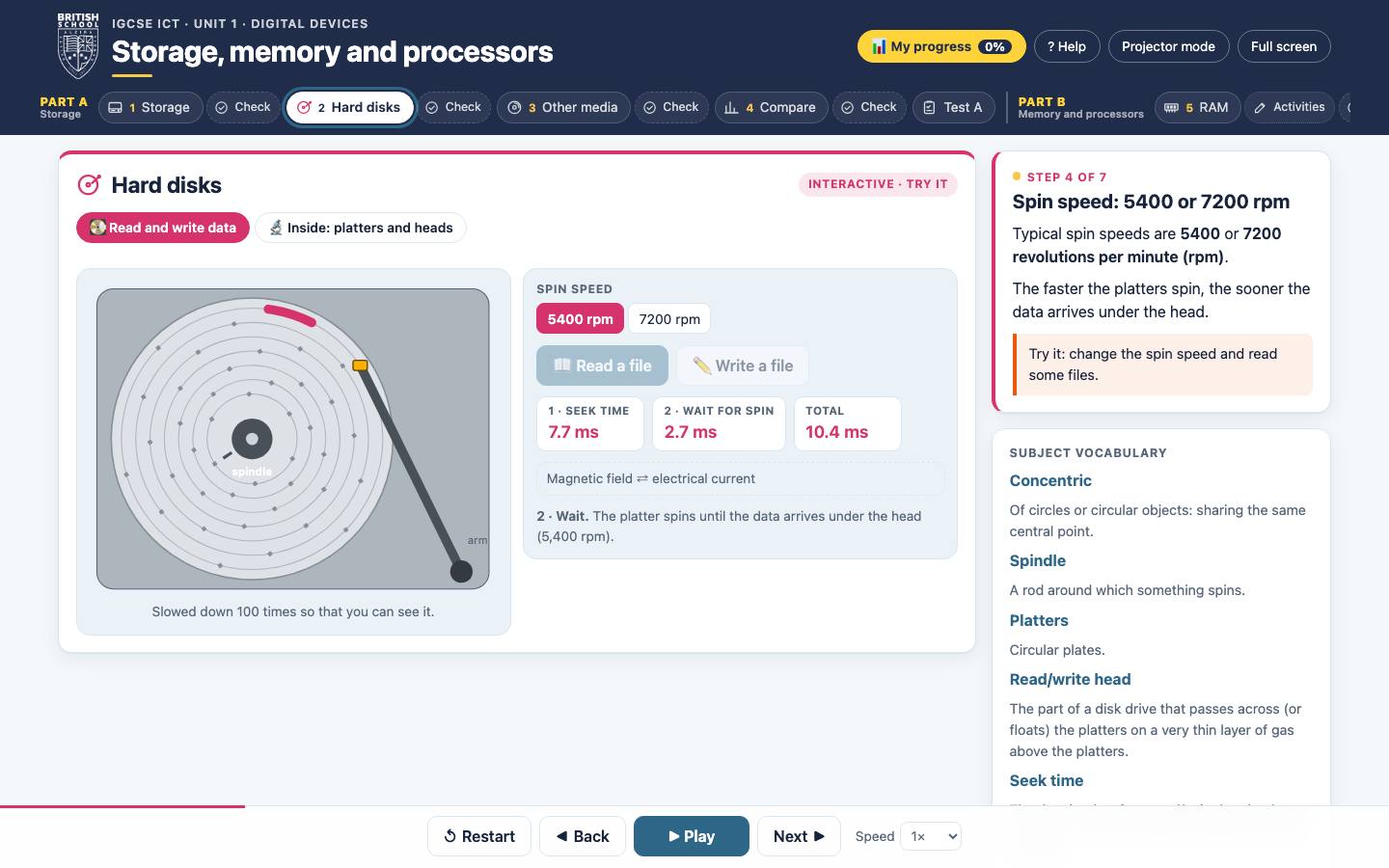
Storage, memory and processors · hard disks
The hard disk scene: the platters spin and the read/write head moves, with the seek time and the wait for the spin added up.
✋

Try it yourself

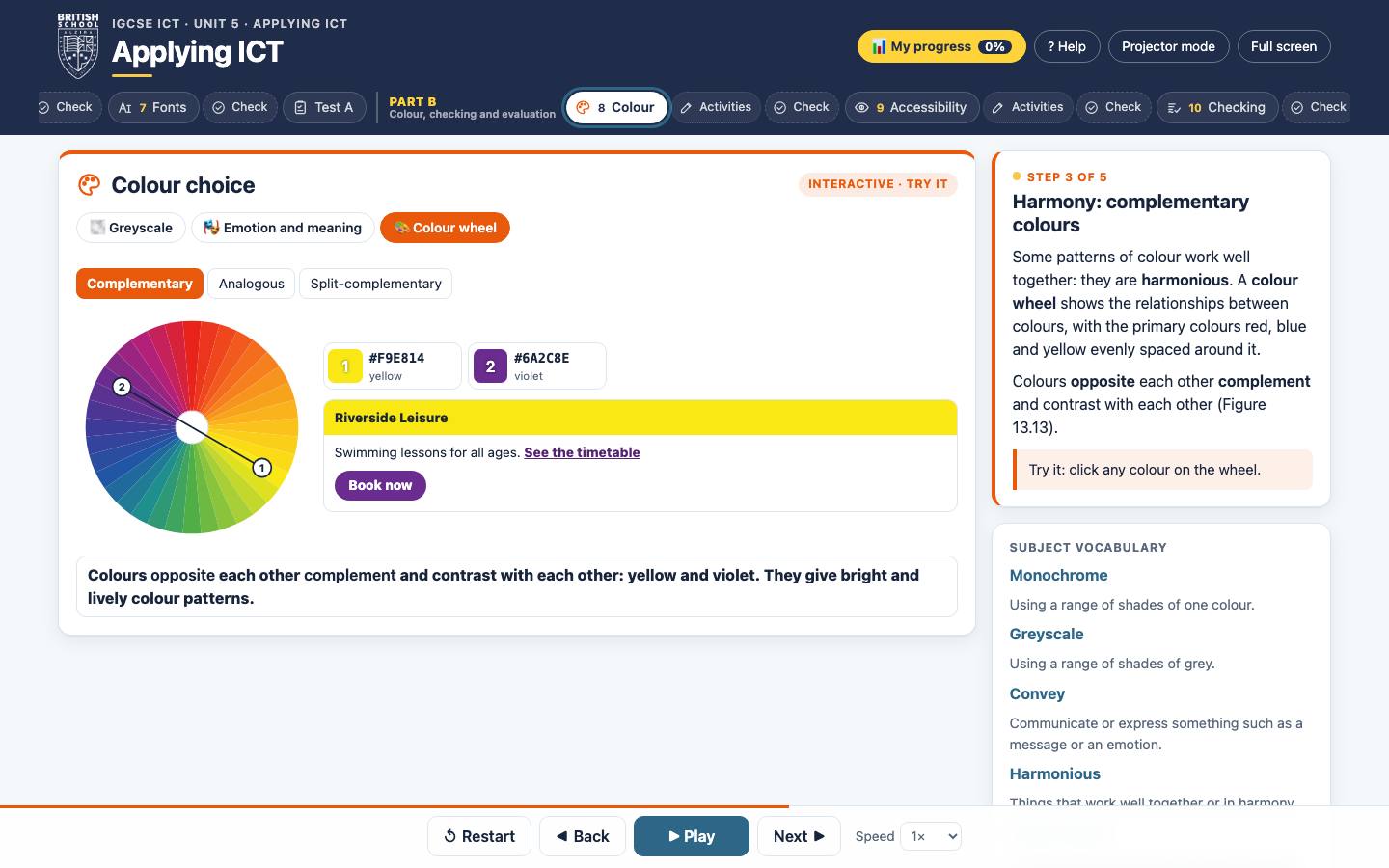
Scan a barcode and a QR code at different angles. Change the spin speed of a hard disk. Pick colours on a colour wheel. Scenes marked Interactive · try it let you click, drag and experiment: you cannot break anything.

  • Real, scannable QR codes and barcodes
  • Simulations with buttons and sliders
  • Activities with answers saved automatically
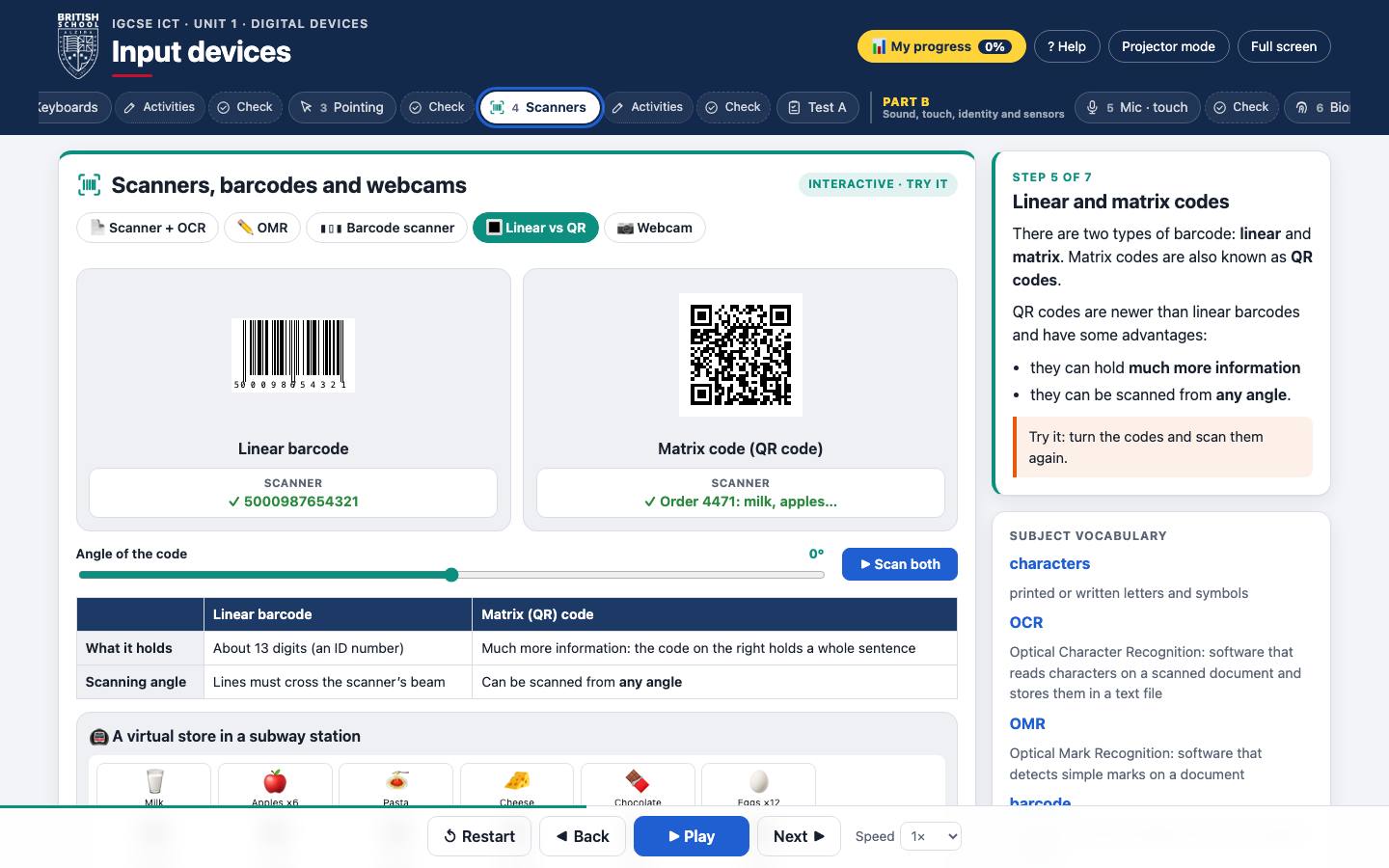
Input devices · linear and matrix codes
The scanners scene: a linear barcode and a QR code are scanned, with a slider to turn the codes and a table comparing them.
✓

A check after every section

Short questions at the end of each section, marked straight away, so you know what to look at again before moving on. The tab turns green when you finish.

  • Instant marking
  • Questions on exactly what you have just learnt
  • See at a glance which sections are done
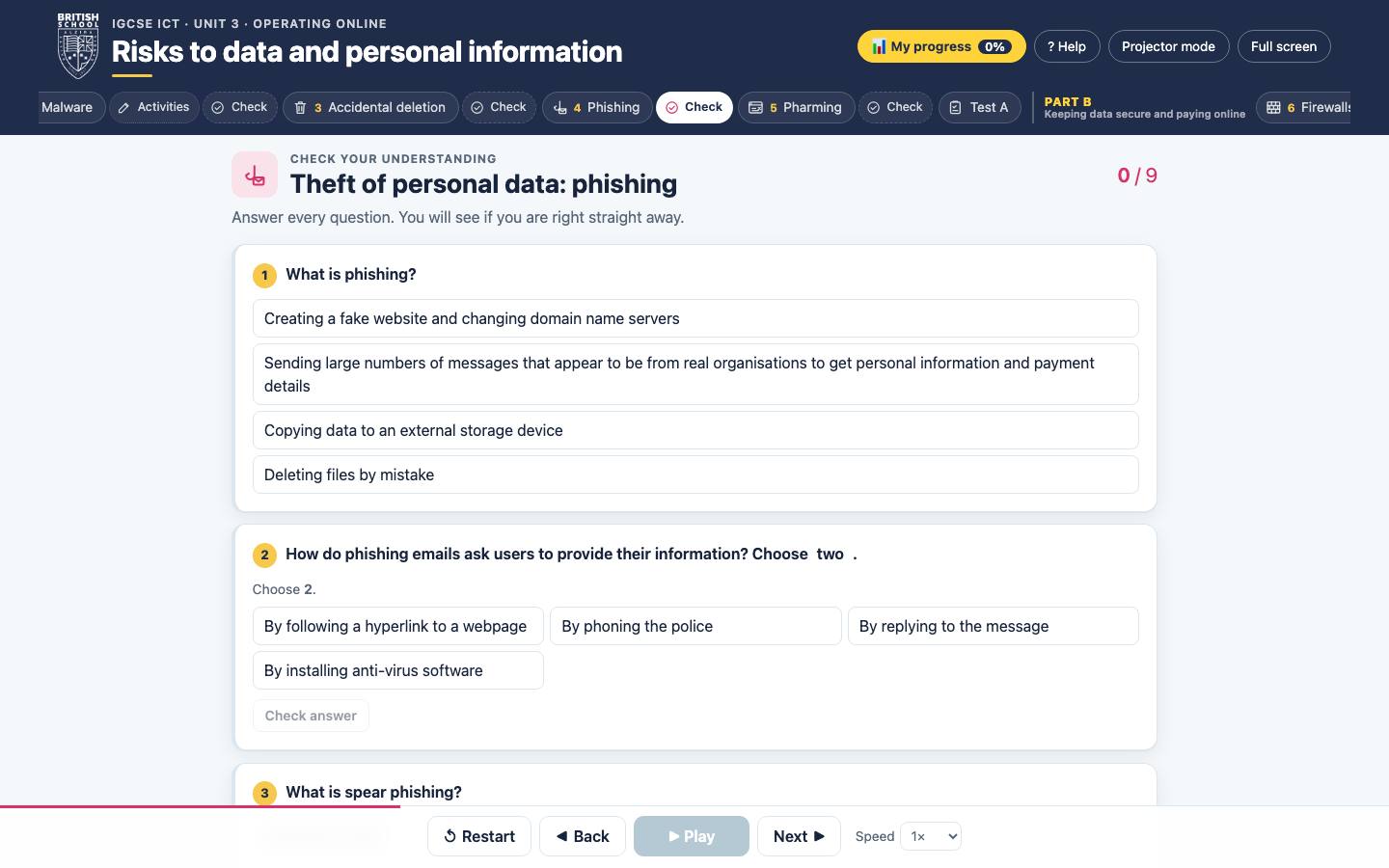
Risks to data · check your understanding
A check on phishing: multiple-choice questions marked as soon as you answer.
✎

Exam-style tests

Every lesson finishes Part A and Part B with a test: multiple-choice questions plus exam-style questions with their marks. Answers are saved as you go, so you can finish another day, then copy your results for your teacher.

  • Two tests in every lesson
  • Exam-style questions with marks
  • Copy your results in one click
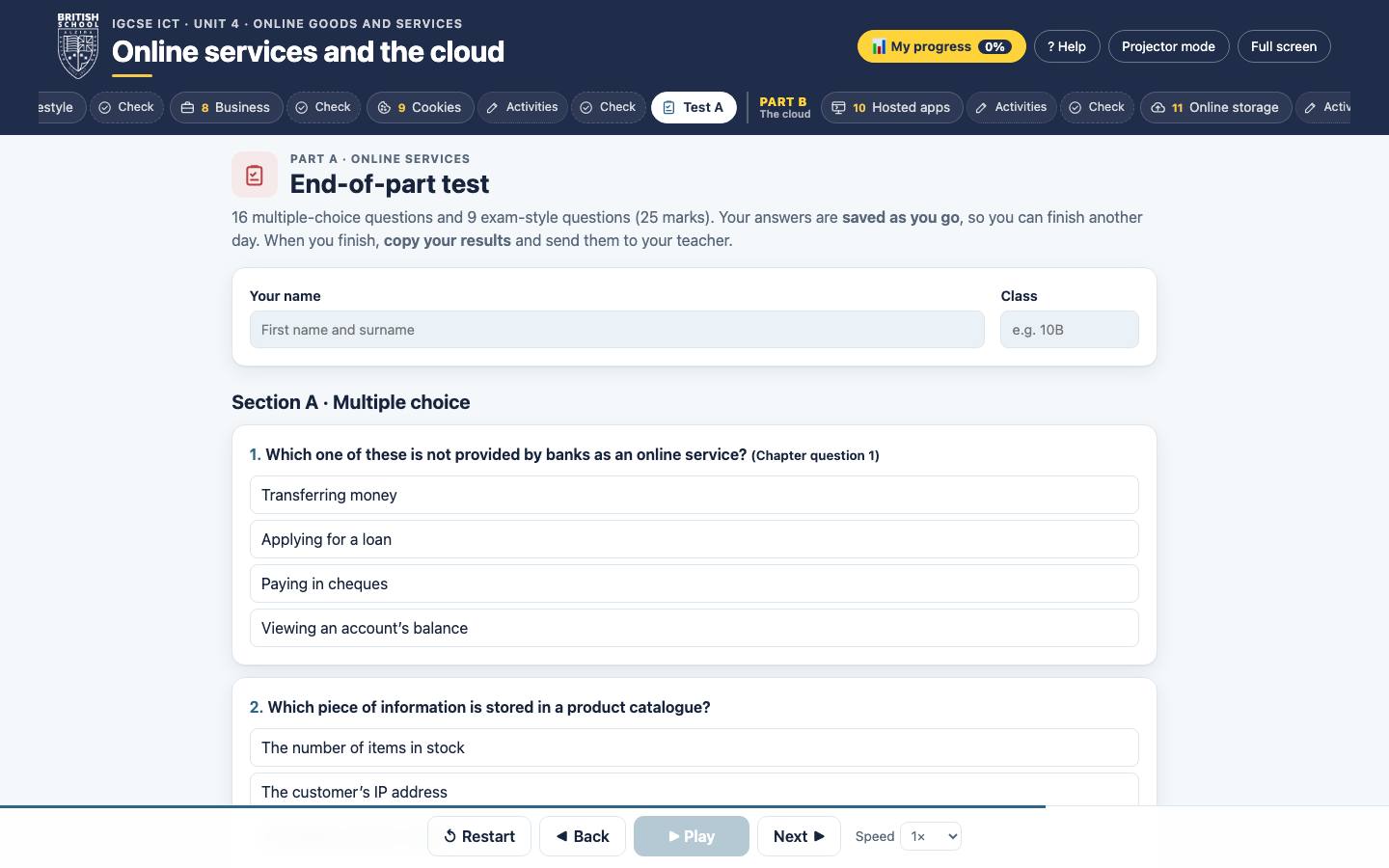
Online services and the cloud · end-of-part test
The end-of-part test: multiple-choice and exam-style questions, saved as you go.
📊

Progress that stays with you

Everything you do is saved on your device. My progress shows how far you are in every section and gives you a report to send to your teacher. Changing device? A progress code carries everything across.

  • Saved automatically
  • A report for your teacher in one click
  • A progress code to move to another device
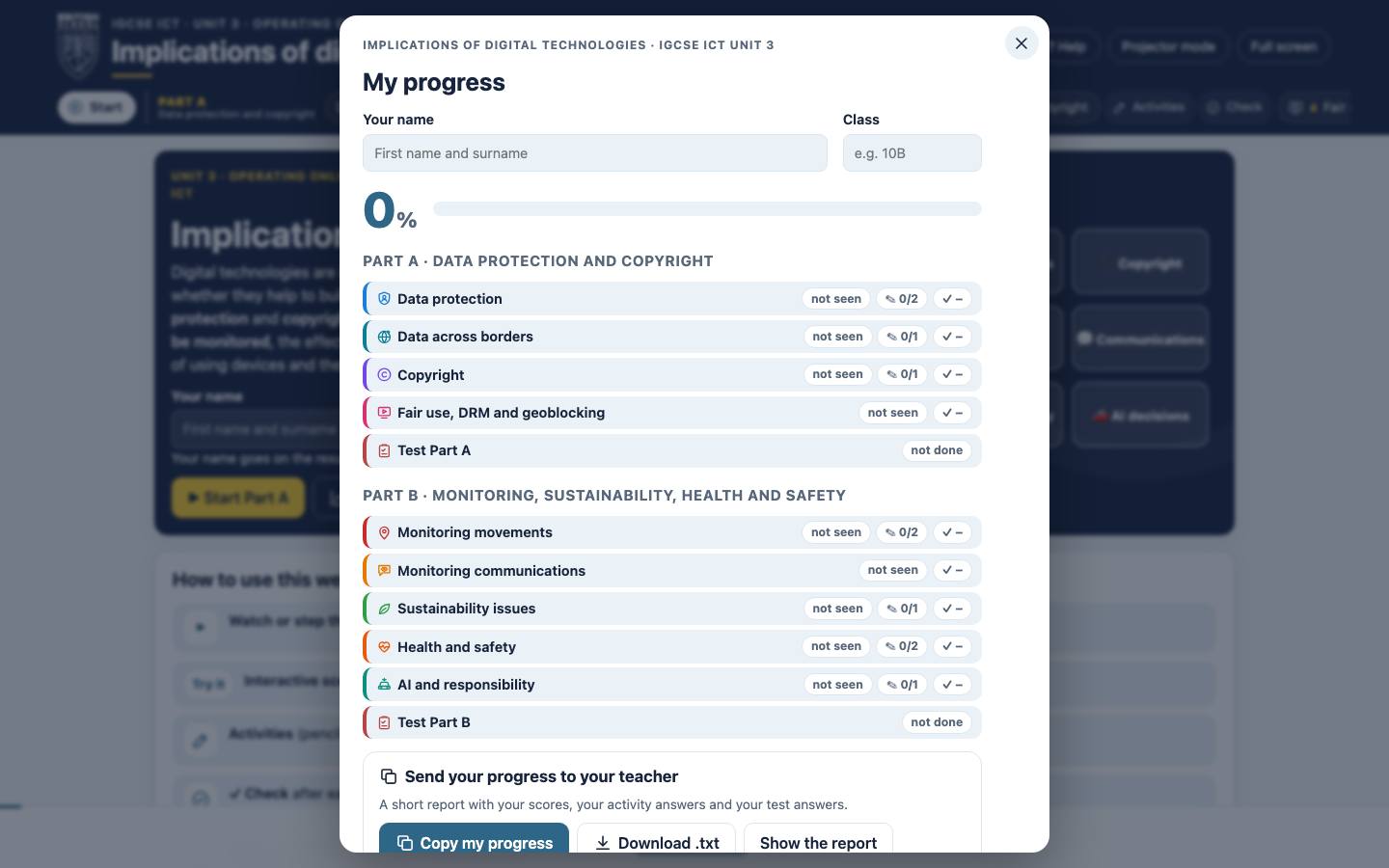
Implications of digital technologies · my progress
The My progress window, with the status of every section and buttons to copy or download the report.

For students

Learn on your own, at your pace

  1. Sign in with your school Google account.
  2. Open a lesson from the hub and write your name in My progress.
  3. Watch, try and check each section, then do the test.
  4. Send your results: copy your progress for your teacher.

For teachers

Made for the classroom

  • 🖥️
    Projector mode enlarges everything for the board. Step through a scene together and stop to ask questions.
  • 📋
    Results you can collect: students copy their progress or test results and paste them into Google Classroom or an email.
  • 📘
    A paper version: every lesson has its chapter in the student booklet, with the page numbers on the hub.
  • 💻
    Works on laptops and iPads, in any modern browser, with nothing to install.

Ready when you are.

Sign in, choose a lesson and start with the first scene.